How to Display Popular Posts in WordPress Using WP-PostViews Plugin
Learn how to track and display your most popular WordPress posts using WP-PostViews plugin. Step-by-step guide with code examples. Boost engagement today!
ASALogsAgency Team
Author
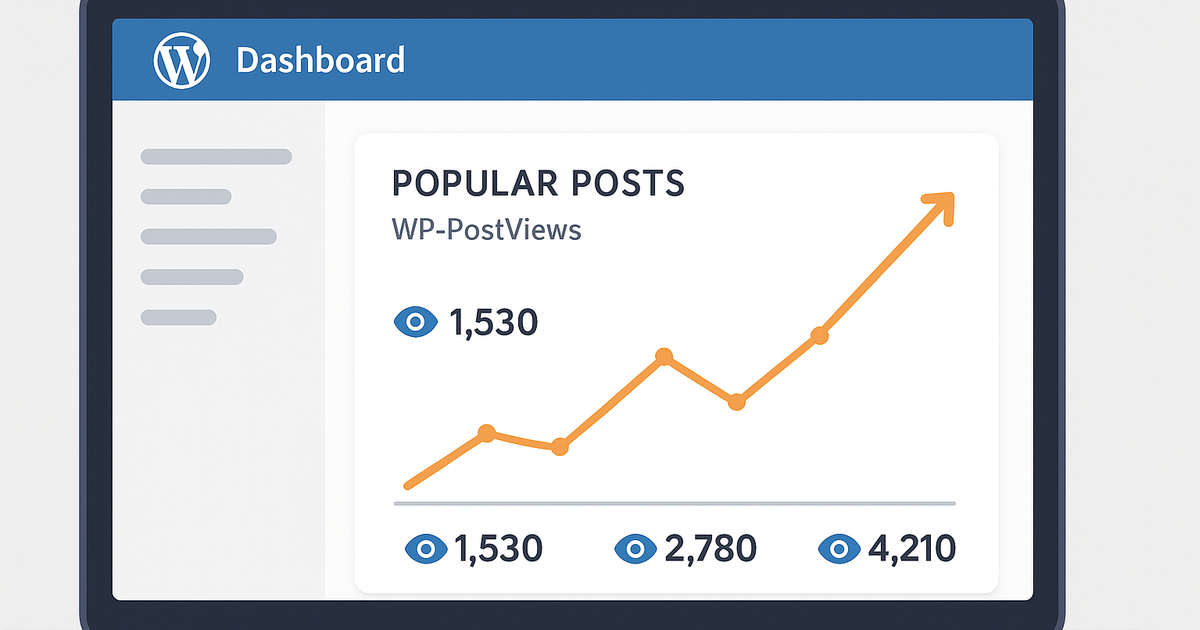
Want to showcase your most popular content and boost user engagement? The WP-PostViews plugin is a powerful tool that tracks article views and helps you display trending posts on your WordPress site. This step-by-step guide will show you how to install, configure, and implement a popular posts section based on real view counts.
What is WP-PostViews?
WP-PostViews is a lightweight WordPress plugin that tracks the number of views for each post and page on your website. It provides detailed statistics and allows you to sort content by popularity, making it perfect for highlighting trending articles.
Step 1: Install WP-PostViews Plugin
Log in to your WordPress dashboard
Navigate to Plugins > Add New
Search for "WP-PostViews"
Click Install Now, then Activate
Alternatively, download directly from: wordpress.org/plugins/wp-postviews
Step 2: Configure Plugin Settings
After activation, configure your settings:
Go to Settings > PostViews in your WordPress dashboard
Count Views From: Select who you want to track:
Everyone – Counts all visitors (recommended)
Guests Only – Counts only non-registered users
Registered Users Only – Counts only logged-in members
Exclude Bot Views: Choose whether to exclude search engine crawlers
Save Changes
Pro Tip: Always backup your settings before making changes.
Step 3: Display View Count on Posts
Add this function to your theme's functions.php file:
function post_views($before = 'Views: ', $after = '', $echo = 1) {
    global $post;
    $post_ID = $post->ID;
    $views = (int) get_post_meta($post_ID, 'views', true);

    if ($echo) {
        echo $before . number_format($views) . $after;
    } else {
        return $views;
    }
}Then add this code where you want the view count to appear (typically in your single.php or content.php):
<?php post_views(); ?>Step 4: Display Popular Posts by View Count
To show your most viewed posts, modify your query loop. Find your theme's query section and update it:
Original:
$my_query = new WP_Query();Updated:
$my_query = new WP_Query('showposts=5&orderby=meta_value_num&meta_key=views');Parameters Explained:
- •
showposts=5– Displays 5 posts (change number as needed) - •
orderby=meta_value_num– Orders by view count (numerical) - •
meta_key=views– Specifies the views metadata field
Additional Options: Combine multiple parameters with &:
$my_query = new WP_Query('showposts=10&orderby=meta_value_num&meta_key=views&cat=5');Step 5: Customization Options
WP-PostViews offers additional customization:
- •Display Templates: Choose how your most-viewed post list appears
- •Page Restrictions: Control which pages show view counts
- •User Permissions: Set who can see view statistics
Uninstalling the Plugin
If you need to remove WP-PostViews:
- Go to Settings > PostViews
- Scroll to the bottom
- Check "Yes" next to "Uninstall WP-PostViews"
- Click Uninstall
- This removes all plugin data from your database
Conclusion
Displaying popular posts based on actual view counts helps visitors discover your best content and increases page views. The WP-PostViews plugin provides a simple, effective solution for tracking and showcasing trending articles on your WordPress site.
Key Benefits: ✓ Easy installation and setup
✓ Lightweight and fast
✓ Flexible display options
✓ Detailed view statistics
Start tracking your post views today and give your most popular content the spotlight it deserves!
Related Topics
Written by ASALogsAgency Team
Expert content creator specializing in technology, AI, and digital innovation. Passionate about sharing insights that drive business growth and digital transformation.
View all postsJoin the Discussion
Share your thoughts and engage with other readers
Comments section coming soon
![How to Create a Custom Permalink in WordPress [Complete Guide]](https://cdn.sanity.io/images/eeieuy98/production/56a641335b85ad424b31dfc1a005581eaf29d429-1536x1024.png?rect=0,128,1536,768&w=400&h=200)